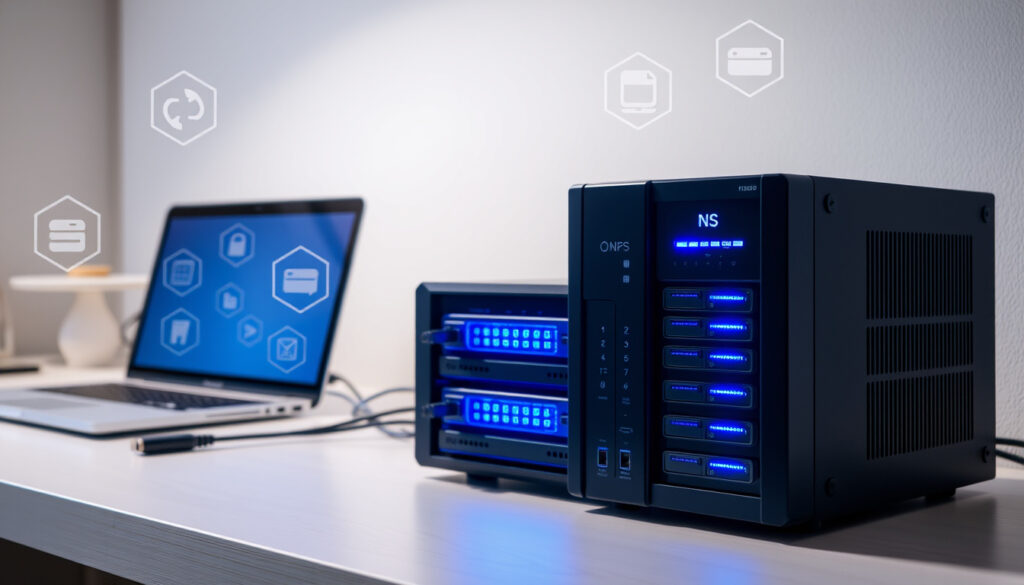
Network Attached Storage: What It Is, Benefits, and Downsides
If you’ve ever tried to share a large file across devices at home or in a small office, you’ve felt the pain of scattered storage, and network-attached storage (NAS) exists to fix exactly that—by putting your files on a central, always‑available box everyone on the network can reach. We’ll walk through what NAS actually is, how it compares to simpler alternatives, where it falls short, and who really benefits from owning one, with real numbers and source-anchored claims to help you decide.
Typical NAS drive bays: 2 to 12 ·
Common RAID levels supported: 0, 1, 5, 6, 10 ·
Average power consumption: 15–50 watts ·
Popular use case: home media server: over 70% of home NAS owners
Quick snapshot
- NAS provides file‑level access over a local network (DTiQ (cloud‑surveillance analysts))
- NAS can use HDD or SSD as storage (Backblaze (cloud‑storage provider))
- NAS supports RAID configurations for redundancy (PC Connection (IT hardware reseller))
- Exact market share of NAS vs cloud storage is debated (PC Connection)
- Best NAS for a specific use depends on budget and ecosystem, with no single winner (PC Connection)
- Total cost of ownership can sometimes exceed cloud subscription costs for small users (PC Connection, YouTube (NAS enthusiast analysis))
- Multi‑gigabit networking (2.5GbE, 10GbE) is becoming standard in mid‑range NAS (Backblaze)
- SSD caching and M.2 drive integration will make NAS faster for hot data (Backblaze)
The essential specs of a NAS are straightforward.
| Label | Value |
|---|---|
| Definition | File‑level storage server connected to a network |
| Common Protocols | NFS, SMB/CIFS, AFP |
| RAID Support | 0, 1, 5, 6, 10 |
| Typical OS | Linux‑based (e.g., Synology DSM, QNAP QTS) |
What is a Network Attached Storage?
A NAS is a dedicated storage appliance that plugs into your router or switch, giving every device on the same local network a central place to read and write files. Unlike a USB drive that only one computer can use at a time, a NAS serves data to multiple users concurrently over standard networking protocols.
How does NAS work?
- A lightweight operating system (often Linux‑derived) manages file sharing, permissions, and RAID.
- Clients connect via SMB (Windows), NFS (Linux/Unix), or AFP (macOS) — all standard protocols baked into modern OSes.
- A basic NAS includes at least one Gigabit Ethernet port, offering up to ~125 MB/s theoretical throughput.
For the home user, a NAS replaces the clumsy workflow of emailing files to yourself. For the small business, it replaces a full‑blown Windows Server without the licensing headache.
What is the purpose of the NAS?
The core purpose is centralized, shared access. Whether you’re streaming a movie to a TV, backing up four laptops overnight, or collaborating on a design file with a colleague down the hall, a NAS makes that data available to every authorized device on the network. Many models also include app ecosystems (Docker, surveillance station, media servers) that turn the box into a multi‑role server.
The implication: a NAS is not a replacement for a local hard drive — it’s a whole different category, built for sharing and redundancy.
Is NAS better than HDD?
This question mixes two different things: a NAS is a device, an HDD is a component. The real comparison is between a NAS system and a single external USB drive, or between a NAS and a legacy file server.
NAS vs HDD: Key differences
Three rows, one pattern: NAS trades simplicity for capability.
| Feature | External HDD | NAS |
|---|---|---|
| Simultaneous users | One (USB connected) | Multiple over network (PC Connection (IT hardware reseller)) |
| Data redundancy | None (unless manually duplicated) | RAID 1/5/6 built in (PC Connection) |
| Remote access | Not natively supported | Standard via internet (PC Connection) |
NAS vs NVR: What’s the difference in video storage?
An NVR (network video recorder) is purpose‑built for security cameras — it ingests video streams, stores them, and manages playback. A NAS can double as an NVR if you install surveillance software, but it’s not optimized for that workload out of the box. The catch: if video surveillance is your primary need, a dedicated NVR is simpler; if you also want file sharing and backups, a NAS with surveillance apps offers better value.
Don’t buy a NAS solely because you think it’s “better” than an HDD. If you only need a single backup drive for one computer, a USB external drive costs a fraction and zero configuration.
The pattern: NAS is for sharing; HDD is for single-user storage.
What are the downsides of NAS?
NAS isn’t magic. It brings complexity, ongoing costs, and potential security risks that many first‑time buyers underestimate.
Can NAS work without internet?
Yes — a NAS works perfectly on a local network with no internet connection. All file sharing, streaming, and backups over LAN function normally. Remote access features obviously require internet, but local operation is independent.
How long will an SSD last in a NAS?
SSD lifespan in a NAS depends on write endurance. Consumer SSDs typically last 5–10 years under light write loads, but constant logging or surveillance recording can wear them out faster. For high‑write environments, enterprise‑grade SSDs or HDDs are still the safer bet.
- Cost creep: The NAS box itself is just the beginning. Drives, backups, networking upgrades, and app subscriptions can push total cost of ownership well beyond a simple external drive.
- Setup complexity: Beginners often struggle with RAID configuration, permissions, and securing the device from the internet.
- Continuous power draw: A NAS runs 24/7; a typical 4‑bay unit consumes 40–50 W, adding roughly $40–60 per year to an electricity bill.
Why this matters: the upfront cost looks small, but the long‑term total is often higher than a cloud subscription for users with modest storage needs.
Upsides
- Centralized access for multiple devices
- Data redundancy via RAID
- Remote access (with proper setup)
- Media streaming (Plex, Emby)
- Runs apps (Docker, surveillance, backups)
Downsides
- Higher upfront cost than external drives
- Setup can be intimidating
- Ongoing power consumption
- Security exposure if not properly configured
- Total cost of ownership can exceed cloud storage
Can I Use a NAS Drive as a Regular Hard Drive?
Technically yes, but it’s not a great idea. NAS‑specific drives (e.g., WD Red, Seagate IronWolf) are tuned for 24/7 operation and RAID vibration tolerance. If you install one in a desktop PC, it will work, but you’ll pay a premium for features you don’t need. Conversely, a standard desktop HDD placed in a NAS often fails faster because it’s not designed for constant vibration and heat.
Differences between NAS drives and regular hard drives
Two important contrasts: firmware and endurance.
- NAS drives use a specialized error‑recovery control that prevents a drive from spending too long trying to read a bad sector (which would trigger a RAID drop).
- Regular drives are designed for shorter bursts of activity; NAS drives handle sustained throughput and higher workloads.
The trade‑off: using a regular HDD in a NAS is a risk, not a recommendation.
Compatibility considerations
- Most NAS brands (Synology, QNAP, Asustor) publish a compatibility list for drives. Using an unlisted model may work but voids support guarantees.
- SSD caching requires M.2 or SATA SSDs that meet the manufacturer’s specifications.
The pattern: if you already own a NAS‑grade drive, you can repurpose it in a PC, but you’re better off buying a standard drive for the PC and keeping the NAS‑drive in its intended environment.
Why would anyone need a NAS?
Three groups benefit most: media hoarders, small‑business file sharers, and anyone who values a single source of truth for backups.
Benefits of using a NAS
- Centralized storage: No more hunting across five laptops for the latest version of a file (MyWorkDrive (cloud file‑sharing platform)).
- Redundancy built in: RAID protects against a single drive failure without any manual backup.
- Remote access: Securely reach files over the internet, ideal for telework.
- Media streaming: Run Plex or Emby directly on the NAS, serving movies to every screen in the house.
- Automated backups: Schedule backups from all devices to the NAS, and from the NAS to a cloud service for off‑site continuity.
Who should use a NAS?
- Home users with 2+ family members who need to share photos, music, and documents without emailing or USB drives.
- Small businesses that need shared network drives without the overhead of a Windows Server.
- Tech enthusiasts who want to run Docker containers, a home automation hub, or a personal cloud.
If you’re a single‑computer user who only keeps files locally, a NAS is overkill. But the moment you add a second device or start worrying about drive failure, the economics flip.
Clarity: what’s confirmed and what’s still debated
- NAS provides file‑level access over network (DTiQ)
- NAS can use HDD or SSD (Backblaze)
- NAS supports RAID configurations (PC Connection)
- Exact market share of NAS vs cloud storage
- “Best NAS” for a particular use case is subjective
- NAS setup complexity is often underestimated by first-time buyers
“NAS lets multiple users access data simultaneously over a network, which is one of its main advantages over a single external drive.”
— PC Connection (IT hardware reseller)
“For bulk storage and archival use cases, HDDs are generally preferred because they offer lower cost per gigabyte and higher capacity.”
— Backblaze (cloud‑storage provider)
“A NAS system is often described as a one‑time hardware investment that may still require upgrades and maintenance as data grows.”
— DTiQ (cloud‑surveillance analysts)
For the person trying to decide between a $100 external drive and a $300 NAS with drives, the right move is clear: if you value convenience, sharing, and resilience, a NAS pays for itself the first time a drive fails without data loss. For the single‑user, single‑laptop crowd, the simpler, cheaper option wins every time.
Many users find that combining a local NAS with cloud storage services offers the best balance of speed and accessibility for everyday data needs.
Frequently asked questions
How do I set up a NAS?
Unbox, install hard drives, connect to your router via Ethernet, power on, and use the manufacturer’s web‑based wizard to initialize. Most systems take under 30 minutes.
Do all NAS devices come with RAID?
All major consumer NAS models include software RAID support (usually 0, 1, 5, 6, 10). Some cheaper single‑bay units offer only JBOD or no RAID.
Can I access NAS remotely?
Yes, through features like Synology QuickConnect, QNAP myQNAPcloud, or by setting up a VPN.
What is the difference between NAS and DAS?
DAS (direct‑attached storage) connects directly to a computer via USB or Thunderbolt and is not shared over a network. NAS uses the network, allowing multiple devices to access it.
Is NAS secure?
Out of the box, most NAS devices expose management interfaces to the local network. For internet access, use a VPN, strong passwords, and keep firmware updated. Misconfigured NAS units are a common ransomware target.
How much does a NAS cost?
Entry‑level 2‑bay enclosures start at $100–$200 (without drives). Mid‑range 4‑bay models run $300–$600. Hard drives add $50–$200 per bay depending on capacity and type.
What is the best NAS for video editing?
A NAS with 10GbE networking and SSD caching (e.g., Synology DS1522+, QNAP TS‑473A) can handle 4K editing workflows, though direct‑attached SSDs remain faster for single‑user work.
Can I use a NAS for gaming?
Yes, as a game library storage. Install games on the NAS and play over a fast local network. Load times will be longer than an internal SSD, but modern titles run fine with a 1GbE connection.
More related posts
 How to Buy a House in Ireland: Step-by-Step Guide 2025
 Things to Do in Singapore: Top Attractions & Budget Tips
 MOS Burger Near Me: Locations, Menu, Health Comparison
 Adidas Evo SL Singapore – Price, Stock and Retailers Guide
 500 HKD to SGD: Live Rate & Best Conversion Options
 How to Check Thailand Post Parcel (2025 Guide)
 CW Bus to JB 2026: Routes, Fares, 24-Hour Service & Tips