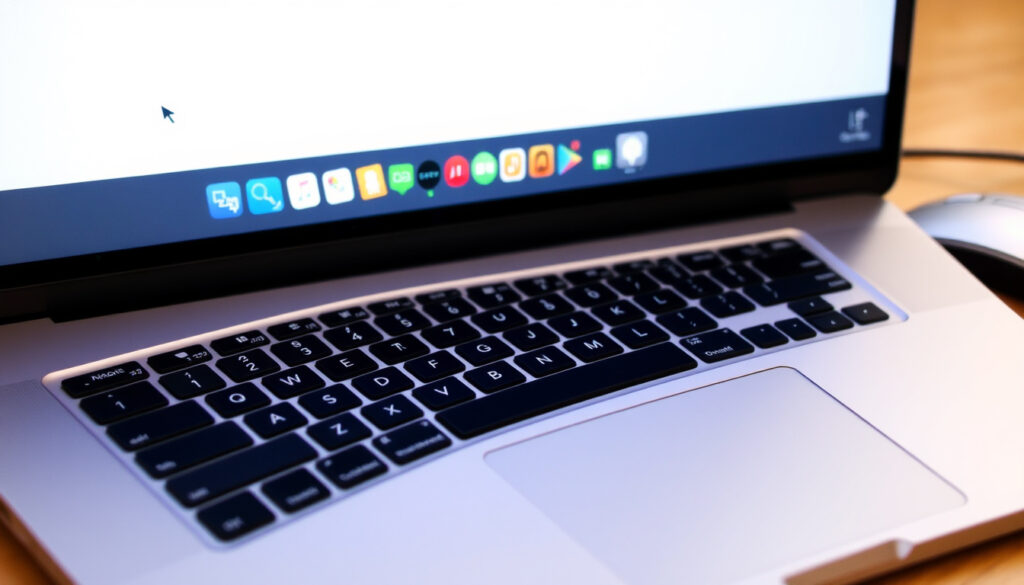
How to Right Click on MacBook: Trackpad, Keyboard & Mouse
Anyone who’s just switched from a Windows PC to a MacBook quickly discovers one thing: the familiar right-click doesn’t work the same way. The trackpad gestures are different, and that muscle memory from years of Windows use doesn’t transfer over. But Apple’s trackpad actually supports several right-click methods — some are enabled by default, while others just need a quick settings change. This guide walks through every option so you can find the one that feels most natural.
Default right-click method on MacBook trackpad: Two-finger tap · Built-in alternative methods: 4 (control-click, bottom-right corner, keyboard shortcut, three-finger tap with customization) · Official Apple support page: support.apple.com/guide/mac-help/mh35853 · Common troubleshooting step: Check System Preferences > Trackpad > Secondary Click
Quick snapshot
- Default on modern MacBooks (Apple Support)
- Quick and intuitive (Apple Support)
- Works on all trackpads (Apple Support)
- Works with any mouse or trackpad (Apple Support)
- Hold Control key while clicking (Apple Support)
- No settings needed (Apple Support)
- Click with single finger on right side (Avast)
- Requires secondary click enabled in settings (Avast)
- Works wirelessly with MacBook (Avast)
The four primary methods each suit different situations. Two-finger tap gives you speed on the trackpad. Control-click offers universal reliability. Keyboard shortcuts work when you have no pointing device at all. And Magic Mouse brings a familiar feel for users coming from traditional mice.
| Feature | Detail | Source |
|---|---|---|
| Default right-click method | Two-finger tap on trackpad | Apple Support |
| Built-in alternatives | 4 methods (control-click, bottom-right corner, keyboard shortcut, three-finger tap with customization) | Avast |
| Official Apple support page | support.apple.com/guide/mac-help/mh35853 | Apple Support |
| Common issue | Secondary click disabled in Trackpad settings | YouTube Tutorial |
| Official term | Control-click or secondary click | Apple Support |
| Force Touch trackpads introduced | 2015 MacBook models | Avast |
How do I right click on my Mac without a mouse?
Using two-finger tap on trackpad
- Two-finger tap is the default right-click method on most Mac trackpads, configurable in System Settings > Trackpad > Point & Click > Secondary click (Apple Support)
- Tap to click must be enabled for two-finger tap to register as secondary click (YouTube Tutorial)
- Two-finger click provides contextual menu on desktop, websites, and documents immediately after enabling (YouTube — Payette Forward)
The two-finger tap is what most MacBook users rely on daily. Avast notes that force touch trackpads (2015+ models) also support a pressure-based variant called Force Click, which adds haptic feedback for a firmer press. If you’ve never tried it, open System Settings, head to Trackpad, and make sure “Secondary click” is set to “Click with Two Fingers.”
If you own a 2015 or later MacBook, force touch means you get two distinct right-click sensations — a light two-finger tap for casual use, and a deeper press for when you want tactile confirmation. Avast confirms this option is available across all Force Touch trackpad models.
Using Control-click
- Control-click (hold Control key + left-click) works universally as right-click backup on any Mac input device (Apple Support)
- Control-click works even if trackpad secondary click is set to Off (YouTube Tutorial)
- Right-click is officially termed “Control-click” or “secondary click” by Apple (Apple Support)
Control-click is the fallback that always works. No settings required, no trackpad configuration needed. It mirrors the old Windows approach but replaces the right button with the Control key. This method becomes especially useful when you’re using an external mouse that hasn’t had its drivers installed yet, or when the trackpad is acting up.
Using keyboard shortcut (Mouse Keys)
- Mouse Keys in Accessibility > Pointer Control enables numeric keypad for pointer movement and clicks as keyboard shortcut alternative (Avast)
- Accessibility feature “Alternate pointer actions” allows keyboard keys (default F11 left, F12 right) to simulate clicks without trackpad (YouTube Tutorial)
- Magic Keyboard with Touch ID has dedicated Contextual Menu key below F13 for right-click equivalent (Apple Support)
Mouse Keys is the hidden gem for anyone who hates reaching for the trackpad. Turn it on in System Settings > Accessibility > Pointer Control > Mouse Keys, and you can move the cursor with the numeric keypad. Press key 5 for a left click, and key 0 for a right click. It’s slower than a trackpad but invaluable when you’re typing and don’t want to move your hands.
How do we right click on a MacBook?
Right-click on MacBook trackpad
- MacBook trackpad supports two-finger click and bottom-right corner click, configurable in System Settings > Trackpad (Avast)
- Secondary click options include Click with Two Fingers, Click in Bottom Right Corner, Click in Bottom Left Corner (Avast)
- Different MacBook models may have slight gesture differences — Force Touch vs older trackpads (Avast)
The trackpad is where most MacBook users live. Open System Settings > Trackpad > Point & Click, and you’ll see a dropdown labeled “Secondary click.” The default is “Click with Two Fingers,” but you can switch to bottom-right or bottom-left corner clicks if that matches your muscle memory better. Force Touch trackpads (2015 onward) also let you adjust the click pressure sensitivity.
Right-click with Magic Mouse
- Magic Mouse supports single-finger click with secondary click enabled in settings (Avast)
- Secondary click set to Click Right Side or Click Left Side for Magic Mouse in System Settings > Mouse (Avast)
- Secondary click customizable separately for Mouse and Trackpad in System Settings (Avast)
The Magic Mouse has no obvious physical buttons, which throws a lot of new users. But the surface is touch-sensitive: lift one finger and click with the other on the right side, and you get a right-click. Head to System Settings > Mouse and set “Secondary click” to “Click Right Side.” This setting is independent of the trackpad setting, so you can have two-finger tap on the trackpad and right-side click on the mouse at the same time.
Right-click with external mouse
- External mice may require driver installation or system preference adjustment (Apple Support Community)
- Test with a different mouse to isolate hardware problems (Apple Support Community)
- If secondary click set to Off, no right-click possible until re-enabled (YouTube Tutorial)
Third-party mice often cause the most frustration. A standard two-button USB or Bluetooth mouse typically works out of the box — left click, right click, scroll wheel. But some gaming mice or specialized peripherals need proprietary software to map buttons correctly. If your external mouse won’t right-click, first check System Settings > Mouse and confirm “Secondary click” isn’t set to Off. Then try a different mouse to see if the problem follows the device or the MacBook.
Why can’t I right click on my Mac?
Trackpad settings not configured
- Check System Settings > Trackpad for secondary click setting (YouTube — Payette Forward)
- If secondary click set to Off, no right-click possible until re-enabled (YouTube Tutorial)
- Tap to click must be enabled for two-finger tap gestures to work (YouTube Tutorial)
This is the number one cause of “right-click not working” complaints. Open System Settings, search for “Trackpad,” and check the Point & Click tab. The “Secondary click” dropdown must be set to something other than “Off.” If you prefer tapping over clicking, also enable “Tap to Click” — without it, a two-finger tap does nothing.
Mouse driver issues
- Check Mission Control settings; if “Secondary Mouse Button” is enabled, it can disable trackpad right-click (Apple Support Community)
- Reset NVRAM/PRAM may resolve mouse issues (Apple Support Community)
- Update macOS to the latest version (Apple Support Community)
Drivers and system-level settings sometimes conflict. The Apple Support Community reports that Mission Control’s “Secondary Mouse Button” setting can intercept right-click commands. If you’ve installed third-party mouse software (Logitech Options, SteerMouse, etc.), check whether those apps have their own right-click mappings that override macOS defaults. A simple NVRAM reset — restart holding Cmd+Option+P+R until the second startup chime — clears most driver-level conflicts.
Software conflicts
- Reset SMC (System Management Controller) by shutting down, then holding Power button or Cmd+Option+P+R on startup to fix trackpad issues (Apple Support Community)
- NVRAM/PRAM reset resolves right-click unresponsiveness (Apple Support Community)
macOS updates occasionally reset trackpad preferences or introduce conflicts with accessibility settings. If right-click worked yesterday and stopped today after an update, start with the simple fix: re-check your Trackpad settings. If that doesn’t work, an SMC reset can restore normal trackpad behavior on Intel-based MacBooks. On Apple Silicon models, simply restarting the machine often has the same effect.
Hardware malfunction
- Hardware issue indicated if entire right side of trackpad unresponsive; check batteries if using wireless (Apple Support Community)
- Test with a different mouse to isolate hardware problems (Apple Support Community)
If the entire right side of your trackpad doesn’t respond to any gesture, the hardware may be damaged. This is rare but happens after liquid spills or physical impact. Test by plugging in an external mouse: if right-click works there, the issue is almost certainly the trackpad hardware. On wireless peripherals, low batteries can also cause intermittent right-click failures — swap in fresh batteries before assuming the worst.
How do I right click on my touchpad?
Two-finger tap
- Two-finger tap is the default on modern MacBooks (Apple Support)
- Works on all trackpads when secondary click is enabled (YouTube — Payette Forward)
- Two-finger click provides contextual menu on desktop, websites, documents (YouTube — Payette Forward)
The two-finger tap is the bread and butter of MacBook right-clicking. Rest two fingers anywhere on the trackpad surface and click (or tap, if you’ve enabled Tap to Click). The contextual menu appears at the cursor location. This works in Finder, in apps, on the desktop — everywhere a right-click makes sense.
Bottom-right corner tap
- Secondary click options include Click in Bottom Right Corner and Click in Bottom Left Corner (Avast)
- Touchpad settings allow customization of secondary click behavior (Avast)
- Force Touch trackpads also support click regions (Avast)
Some users prefer the old-school approach: click in the bottom-right corner of the trackpad to right-click. This mimics the physical button layout of older laptops. Switch to it in System Settings > Trackpad > Secondary click and choose “Click in Bottom Right Corner.” Force Touch users get haptic feedback that makes the corner feel like a distinct button press.
Control-click on touchpad
- Control-click works even if trackpad secondary click is set to Off (YouTube Tutorial)
- Control-click works universally on any Mac input device (Apple Support)
When all else fails, press and hold the Control key, then click anywhere on the trackpad. This works regardless of your secondary click settings. It’s the universal escape hatch for right-clicking on a Mac — no configuration required, no gestures to learn. Apple Support describes this as the canonical method, and it’s been consistent across every macOS version.
Is there a way to right click with keyboard on Mac?
Using Mouse Keys
- Mouse Keys in Accessibility > Pointer Control enables numeric keypad for pointer movement and clicks (Avast)
- Press key 0 on numeric keypad for right-click when Mouse Keys is active (Avast)
- Requires accessibility settings to be enabled first (Avast)
Mouse Keys transforms your keyboard into a pointing device. Enable it in System Settings > Accessibility > Pointer Control > Mouse Keys. Once active, use the numeric keypad to move the cursor (keys 1-9 for diagonal and cardinal directions, key 5 for left click, key 0 for right click). It’s not fast, but it works when you have no mouse and no trackpad — or when your trackpad has broken entirely.
Using shortcut Control+Shift+I
- Control+Shift+I opens context menu on selected item in many Mac apps (Apple Support Community)
- Works in Finder for files and folders
- No special setup required — shortcut works out of the box
A less-known shortcut: Control+Shift+I opens the contextual menu (the same menu a right-click would show) for the currently selected item. This works in Finder, on the desktop, and in most Apple apps. Select a file, press Control+Shift+I, and the right-click menu appears. No trackpad, no mouse, just the keyboard.
Assigning a keyboard shortcut
- Accessibility feature “Alternate pointer actions” allows keyboard keys (default F11 left, F12 right) to simulate clicks (YouTube Tutorial)
- Magic Keyboard with Touch ID has dedicated Contextual Menu key below F13 (Apple Support)
- System Settings > Accessibility > Keyboard allows custom shortcut assignments
For users who want a dedicated right-click key, macOS Accessibility lets you assign any keyboard key to simulate a right-click. Go to System Settings > Accessibility > Keyboard > Accessibility Keyboard, then create a custom panel with a right-click button mapped to a key of your choice. If you own Apple’s Magic Keyboard with Touch ID, there’s already a Contextual Menu key (located below F13) that does exactly this — no setup needed.
Keyboard-only right-click is essential for users with mobility limitations, broken trackpads, or setups where hands rarely leave the keyboard. Avast notes that Mouse Keys has been in macOS for over a decade, but most users never discover it because it’s buried in Accessibility settings.
Step-by-step: Set up right-click on your MacBook
- Open System Settings (Apple menu > System Settings).
- Click “Trackpad” in the sidebar, then select the “Point & Click” tab.
- Locate the “Secondary click” dropdown menu.
- Choose your preferred method: “Click with Two Fingers,” “Click in Bottom Right Corner,” or “Click in Bottom Left Corner.”
- If you prefer tapping over physical clicks, toggle “Tap to Click” to On.
- Close System Settings. Test right-click on your desktop by using the method you selected.
- If right-click still doesn’t work, open System Settings > Accessibility > Pointer Control and check that “Mouse Keys” isn’t intercepting input.
- For external mice, open System Settings > Mouse and confirm “Secondary click” is set to your preferred side.
What we know and what remains unclear
Confirmed facts
- Control-click works on all Macs (Apple Support)
- Two-finger tap works on most trackpads when secondary click is enabled (Avast)
- Keyboard shortcut (Mouse Keys) works in Accessibility settings (Avast)
What’s unclear
- Why some third-party mice fail to right-click after macOS updates — likely driver conflicts, but not consistently reproducible (Apple Support Community)
- Exact cause of intermittent right-click failure on certain MacBook models — may be software or battery-related (Apple Support Community)
- Whether future macOS versions will change the default secondary click method — no official statement from Apple
Perspectives from the field
Press and hold the Control key while you click an item using your mouse or trackpad.
Apple Support documentation (official macOS guidance)
Tap the trackpad with two fingers simultaneously to summon the right-click menu.
CNET (established tech review publication)
Secondary click options include Click with Two Fingers, Click in Bottom Right Corner, or Click in Bottom Left Corner.
Avast (security and system utility publisher)
A consistent theme across sources: right-click on a Mac isn’t broken — it’s just configured differently than Windows. The two-finger tap and Control-click are the methods every Mac user should know first. Everything else is customization on top of a solid foundation.
For the new MacBook owner coming from Windows, the choice is straightforward: invest five minutes in System Settings > Trackpad to pick your preferred secondary click method, or keep Control-click as your no-setup fallback. Stick with two-finger tap for daily use, and save Mouse Keys for the days your trackpad unexpectedly stops working. The tools are already built into macOS — they just need to be turned on.
Related reading: How to Password Protect Excel · Best Photo Backup Solutions
For a detailed walkthrough of all the right-click methods for MacBook, including trackpad gestures and keyboard shortcuts, this guide covers every option.
Frequently asked questions
What is right-click on a Mac?
Right-click on a Mac is called “Control-click” or “secondary click” by Apple. It opens a contextual menu with actions relevant to the item you clicked — just like right-click on Windows. All modern MacBooks support it through trackpad gestures, keyboard shortcuts, and connected mice (Apple Support).
Can I right-click on a MacBook without a trackpad?
Yes. You can use Control-click (hold Control and click with any mouse), Mouse Keys in Accessibility settings, the keyboard shortcut Control+Shift+I, or Apple’s Magic Keyboard with Touch ID which has a dedicated Contextual Menu key (Apple Support).
How do I enable right-click on a MacBook Air?
Open System Settings > Trackpad > Point & Click. Set the “Secondary click” dropdown to “Click with Two Fingers” or your preferred corner option. If you want tap gestures, also enable “Tap to Click.” The same steps apply to MacBook Air, MacBook Pro, and all modern MacBook models (YouTube — Payette Forward).
Does right-click work with an external mouse on Mac?
Yes. Most USB and Bluetooth mice work immediately. Open System Settings > Mouse and set “Secondary click” to “Click Right Side” or “Click Left Side.” For gaming or specialty mice, you may need to install the manufacturer’s driver software to map buttons correctly (Apple Support Community).
Why is my right-click only working sometimes?
Intermittent right-click failure usually points to a software setting being toggled off, a macOS update that reset your preferences, or low batteries in a wireless mouse. Check Trackpad and Mouse settings first. If the issue persists, try an NVRAM reset or test with a different input device (Apple Support Community).
How to right-click in Finder vs desktop?
The right-click method is identical in Finder and on the desktop — same gestures, same shortcuts. The contextual menu adapts to what you clicked: a file shows file actions, the desktop shows folder and display options. Both environments respect your secondary click setting in Trackpad preferences (Apple Support).
Is there a right-click on MacBook Neo?
There is no MacBook Neo model. The question likely refers to MacBook Pro or MacBook Air. If you’re using a third-party device branded as “Neo,” check its manufacturer support page for macOS driver compatibility. Standard MacBook right-click methods won’t apply to non-Apple hardware running macOS.
More related posts
 Anytime Fitness Student Price: Discounts & Rates Guide
 Aircon Gas Top Up Price Ireland: 2025 Cost Breakdown
 Lee Na-young: biography, career, marriage, and 2024 return
 Mu lim Prayer Time Singapore: 2025 Schedule & Guide
 Bubble Gum Simulator INFINITY Codes – Active List & Guide
 Best Team Bonding Activities in Singapore: 49 Ideas & Costs
 Translate Vietnamese to Chinese: Best Free Tools Compared 2025